
Your AI accounting assistant
AI based, design for mobile use, no app required, just use your browser.
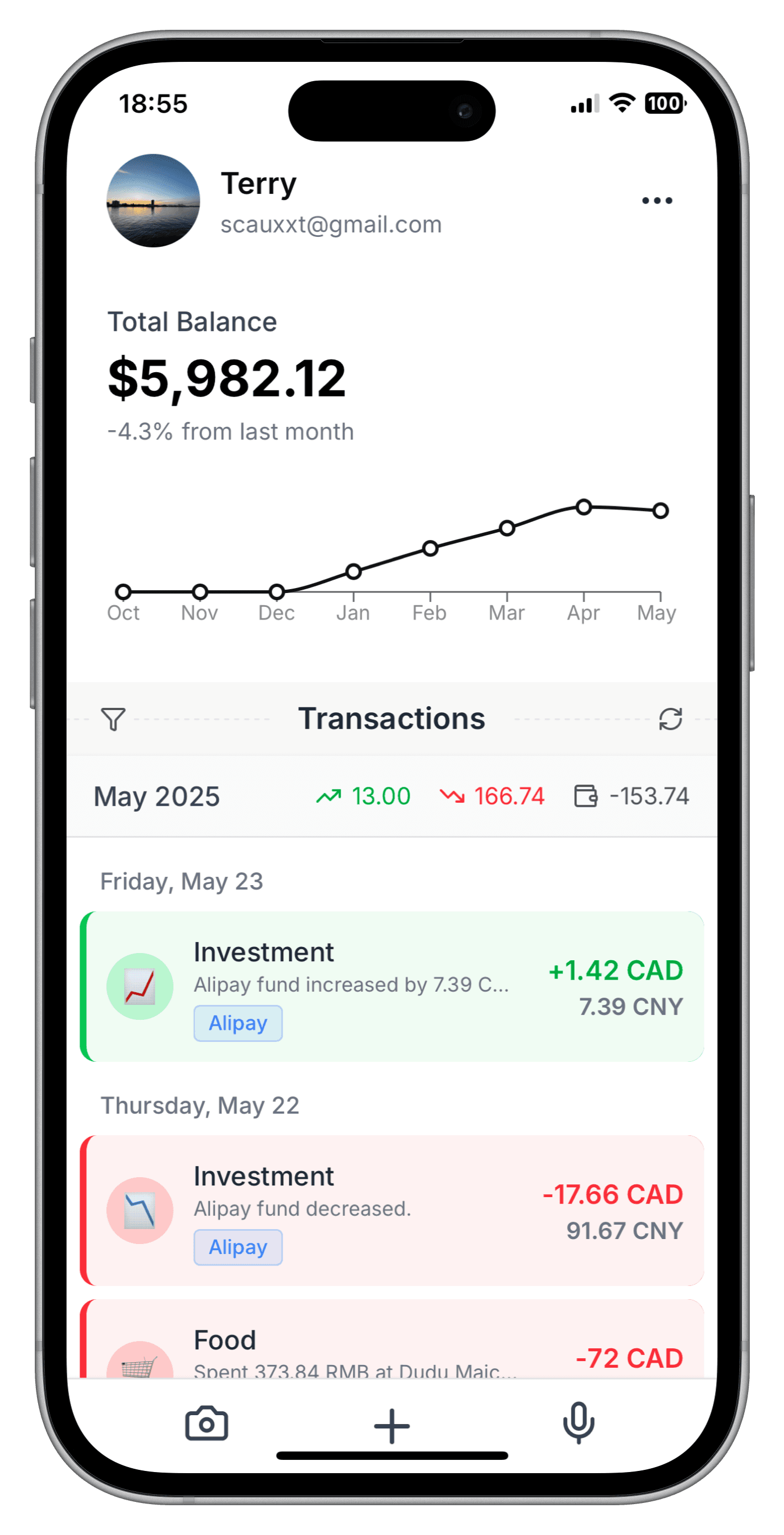
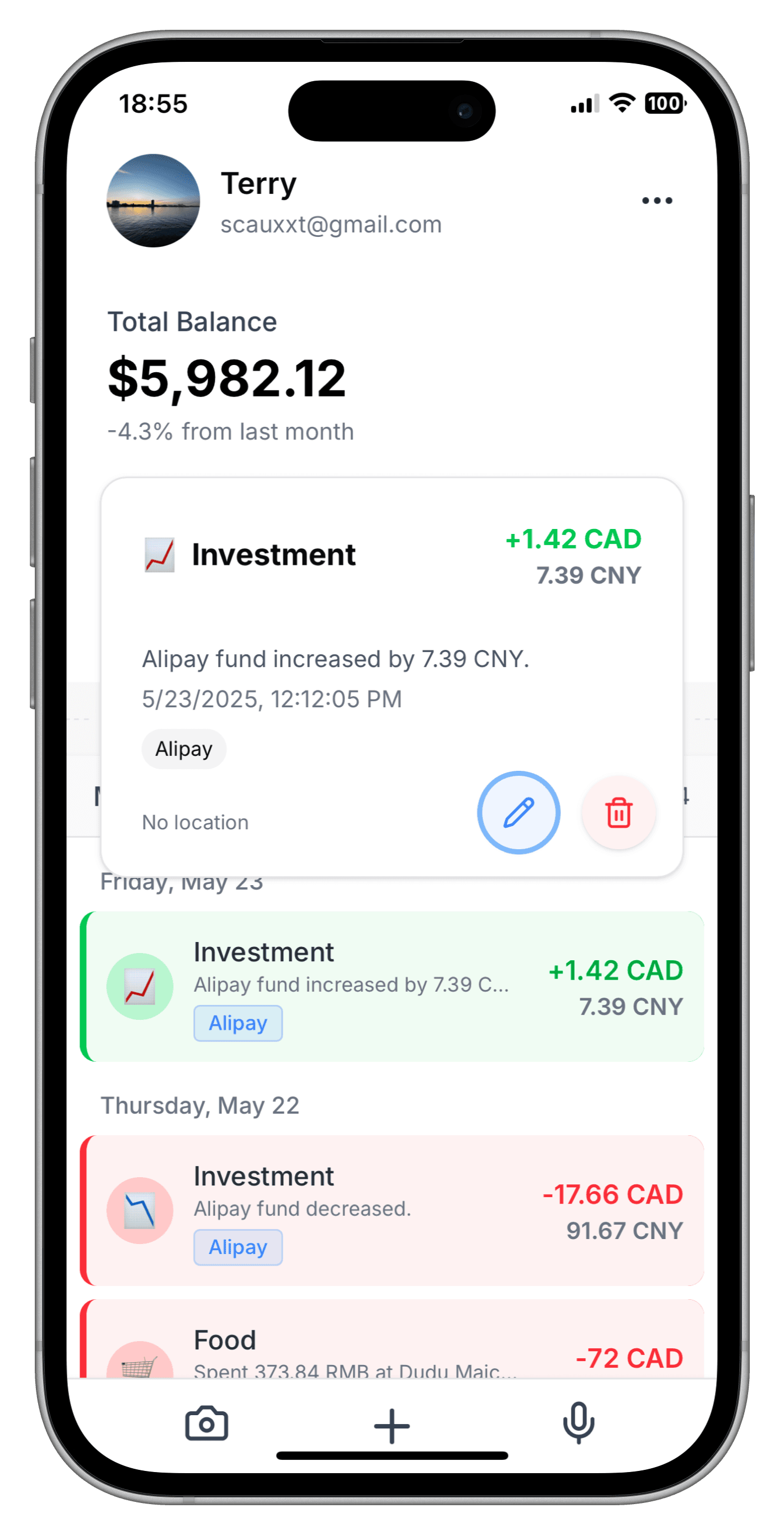
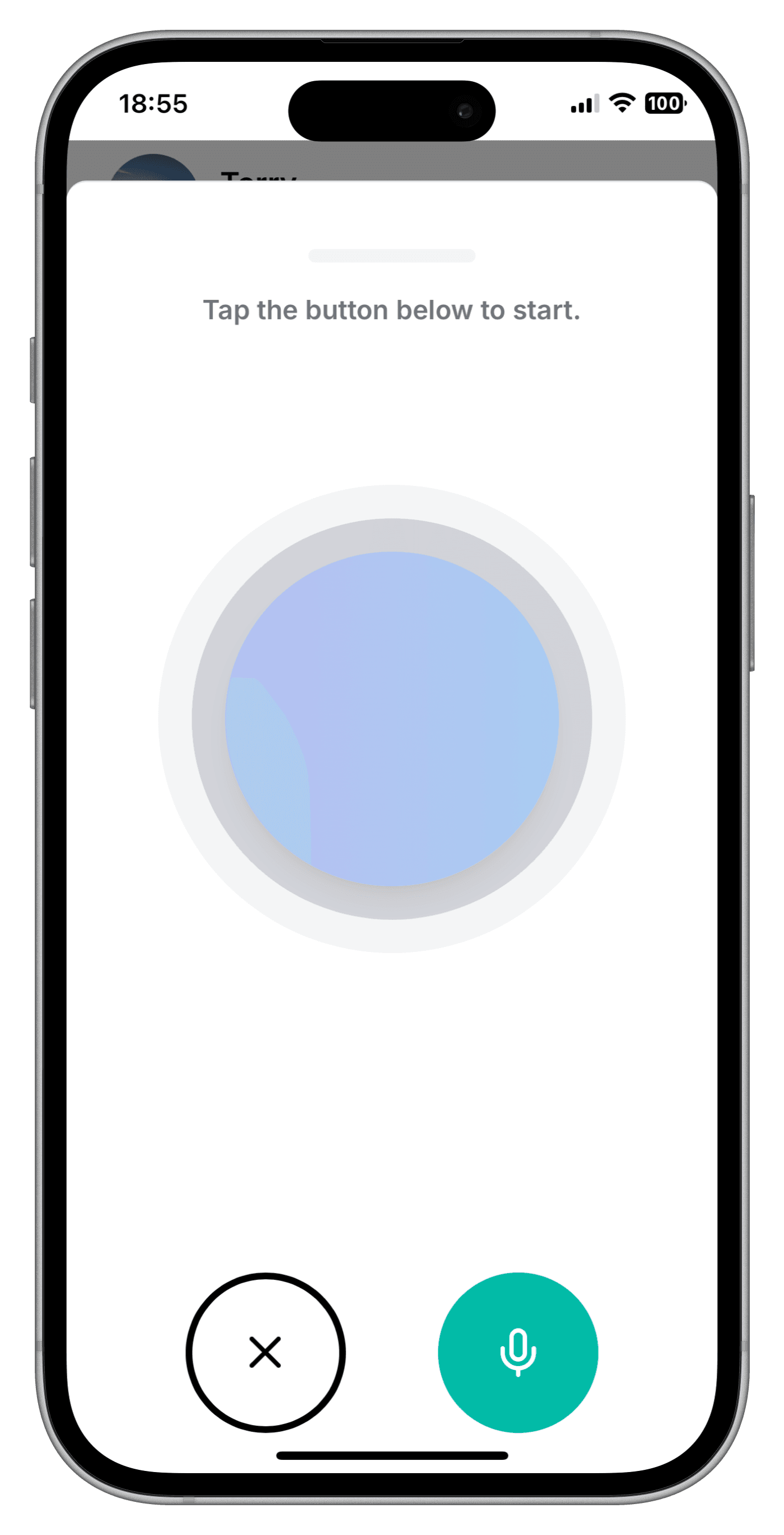
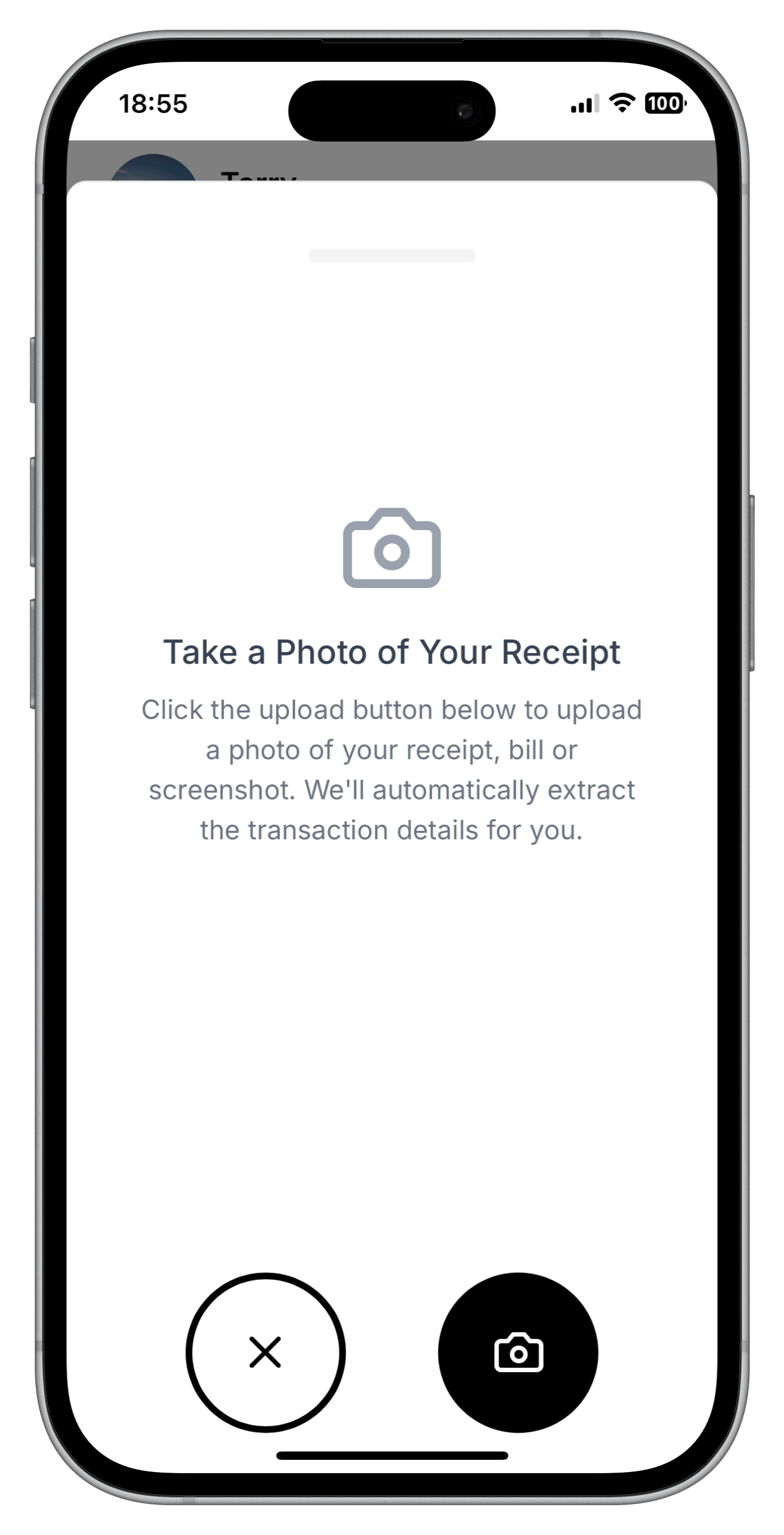
AI-Powered Smart Categorization
Our advanced AI automatically categorizes and tags your transactions with incredible accuracy. No more manual sorting - just intelligent, instant organization.
🤖AI Processing Examples
"I spent $45 for groceries at Whole Foods"
Groceries
Whole Foods Market
Starbucks receipt photo
Coffee & Beverages
Starbucks - Grande Latte
"Salary payment from ABC Corp"
Salary
ABC Corp - Monthly payment
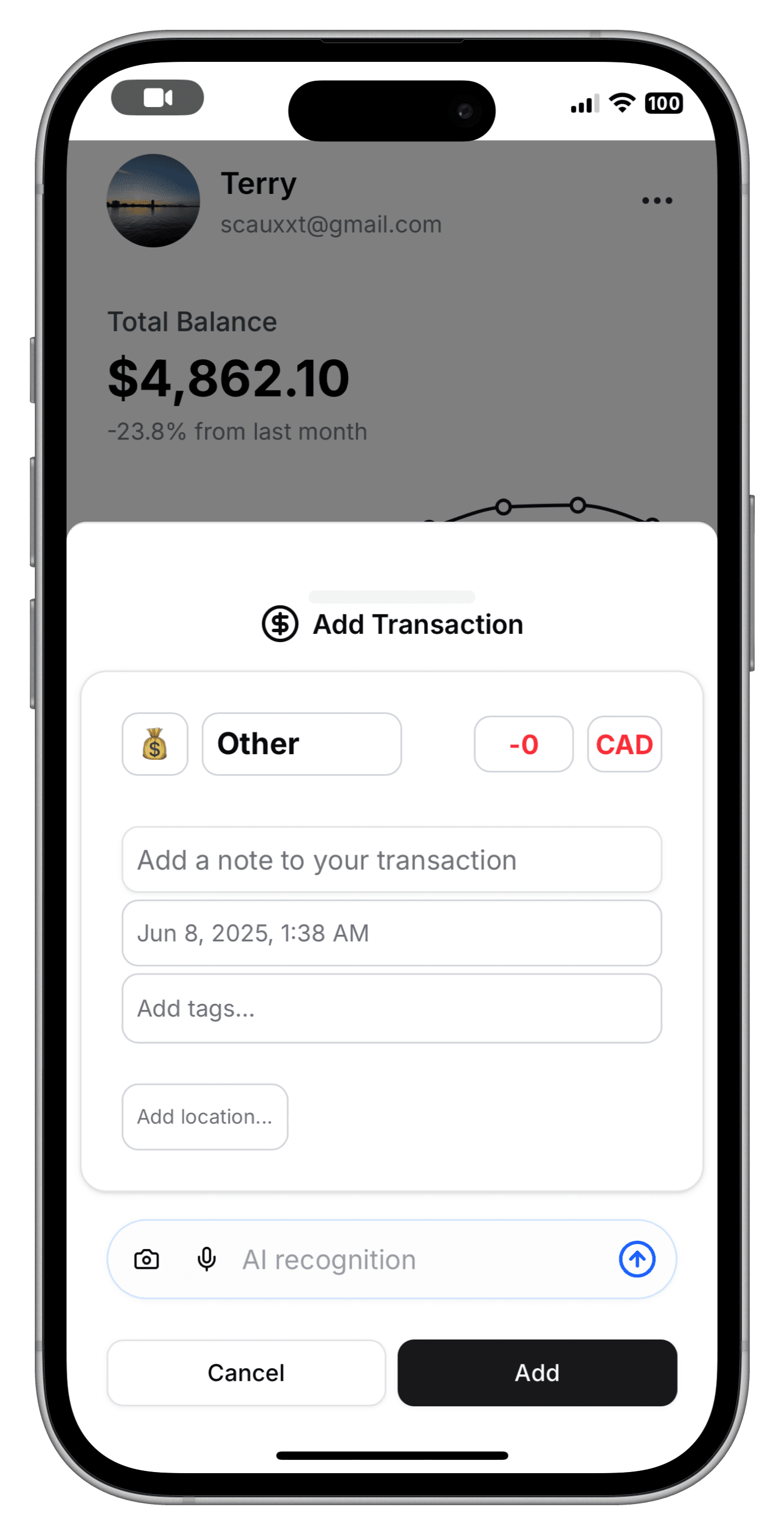
🖊️Edit Page
No App Download Required
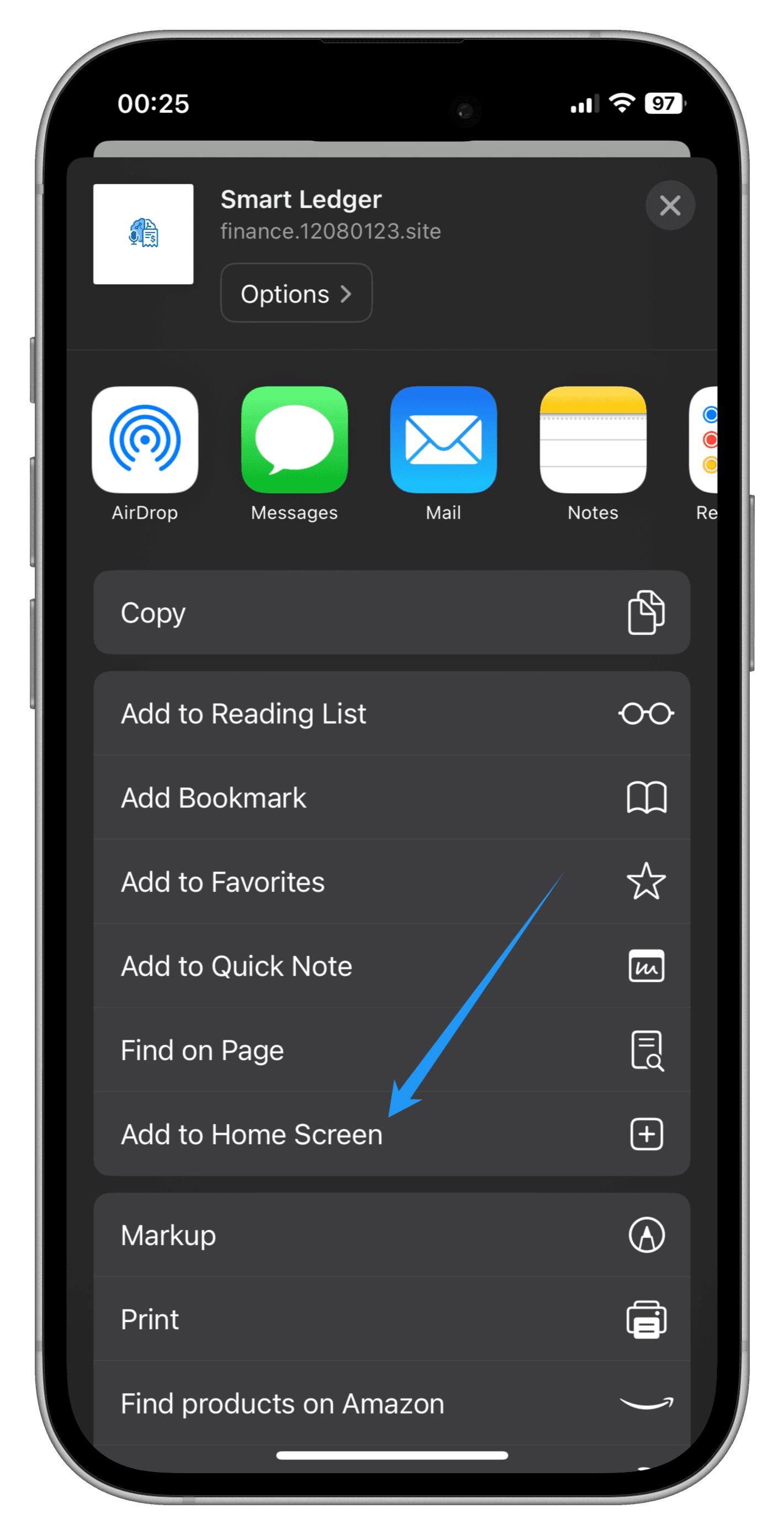
Pure web-based solution - access Smart Ledger instantly through your browser. Add to your home screen for a native app-like experience.
✨ One-Click Installation
📱iPhone/iPad (Safari)
- 1.Open Smart Ledger in Safari
- 2.Complete login to reach main dashboard
- 3.Tap Share button → "Add to Home Screen"
- 4.Enjoy native app experience with offline support
🤖Android (Chrome)
- 1.Open Smart Ledger in Chrome browser
- 2.Complete login to reach main dashboard
- 3.Tap Menu (⋮) → "Add to Home screen" or "Install on device"
- 4.Enjoy fast, reliable app-like experience
Cross-Platform
Works on any device with a web browser
Instant Access
No app store, no waiting, start immediately
Always Updated
Latest features without manual updates
iOS Shortcuts Integration
Seamlessly integrate with iOS Shortcuts for lightning-fast expense tracking. Double-tap your back cover to instantly capture and record transactions from any app.
Back Tap Trigger
Double-tap the back of your iPhone to instantly capture and process transactions from any screen.
Double-tap back cover → Auto screenshot → AI processing
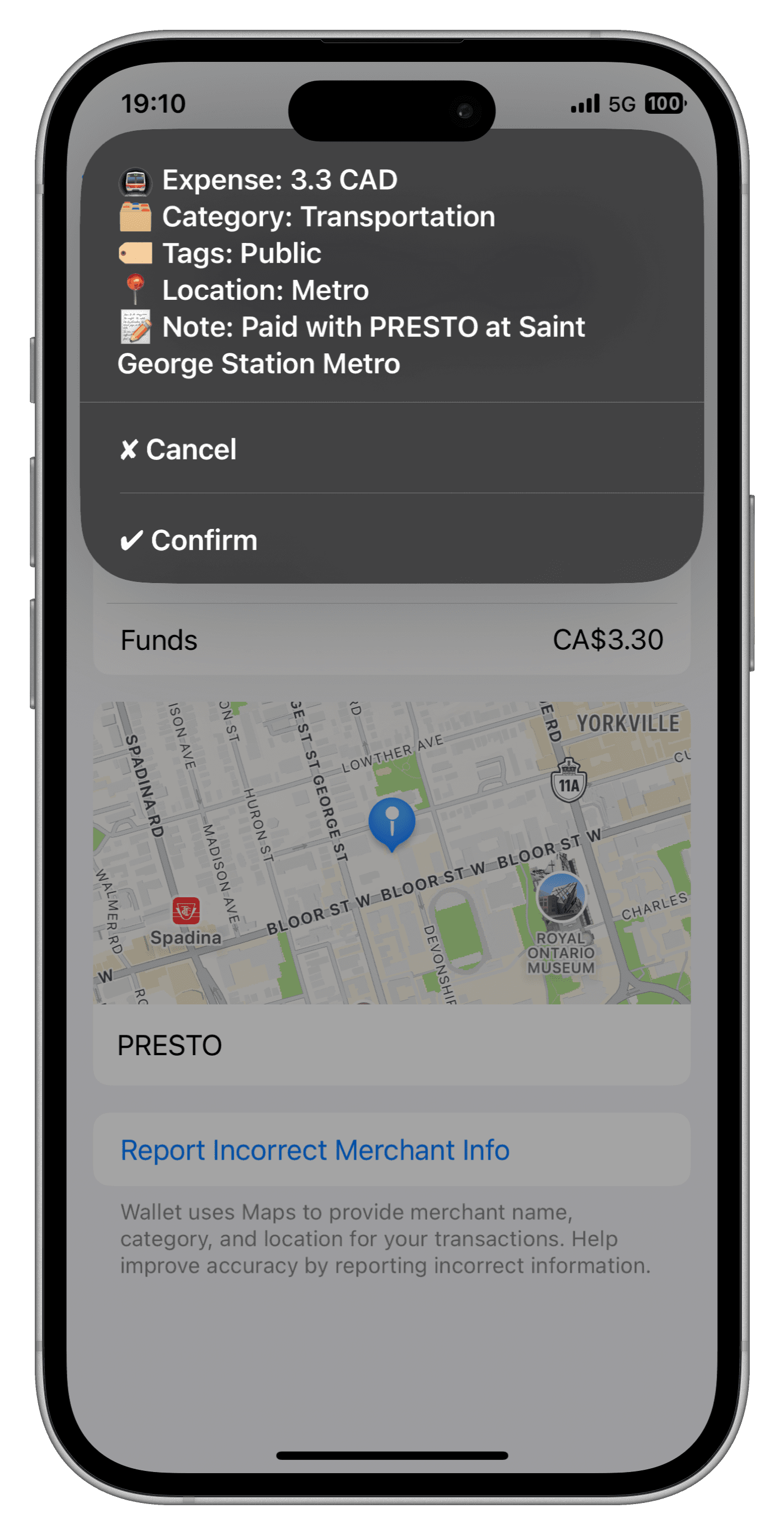
Smart Screenshot
Automatically captures payment screens and uses AI to extract transaction details.
Banking apps • Payment apps • Transfer screens
Setup iOS Shortcuts in 6 Steps
Open Settings
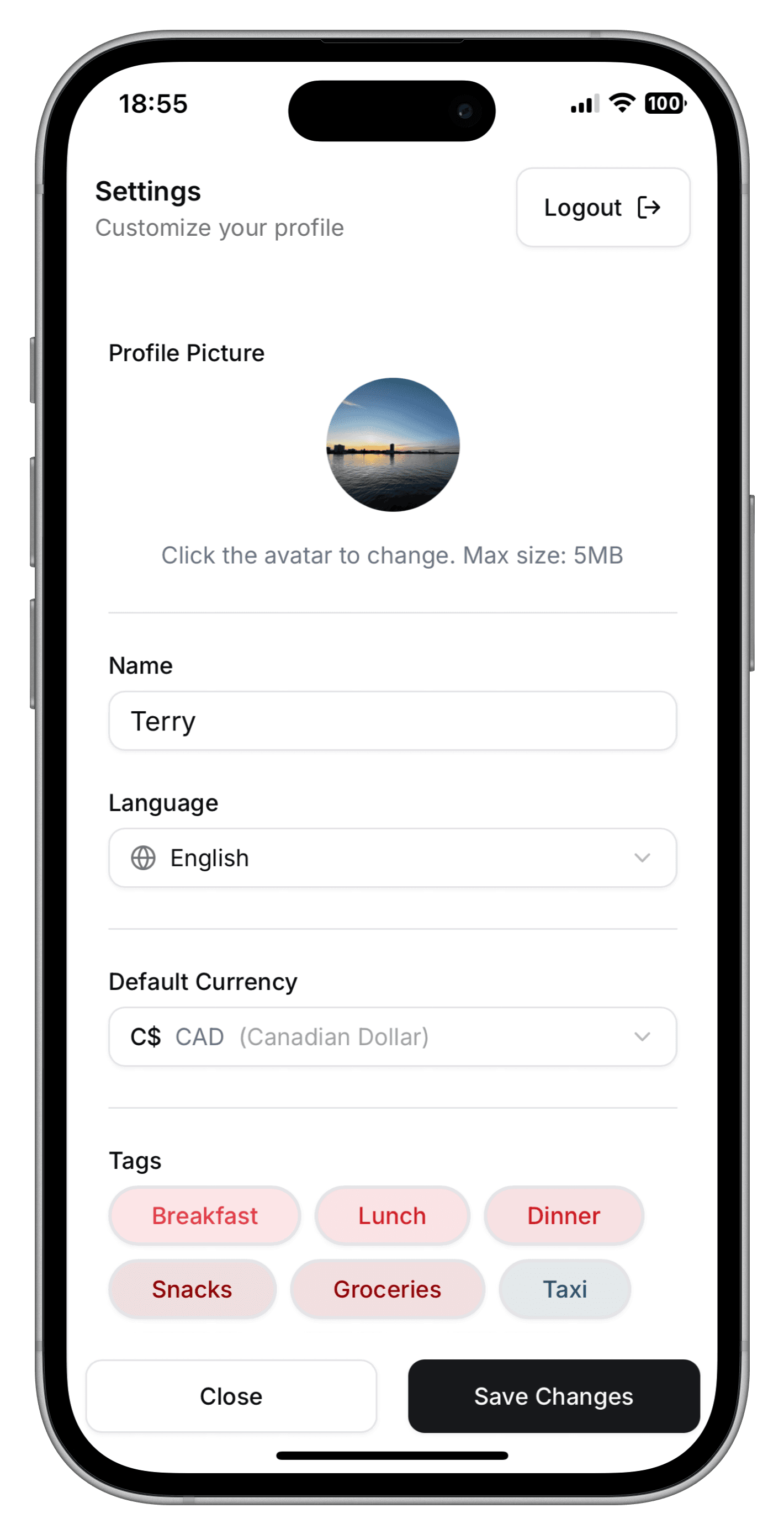
Login to Smart Ledger and navigate to the Settings page.
Generate Token
Click "Generate Token" and copy the unique API token to your clipboard.
Configure Token
Paste your API token into the shortcut configuration.
Set Back Tap
In iPhone Settings → Accessibility → Touch → Back Tap → Double Tap.
Start Recording
Double-tap your phone's back cover on any payment screen to auto-record.
🚀 How It Works
Open your banking app or payment screen
Double-tap the back of your iPhone
AI automatically extracts and records the transaction